
Description
Product Title
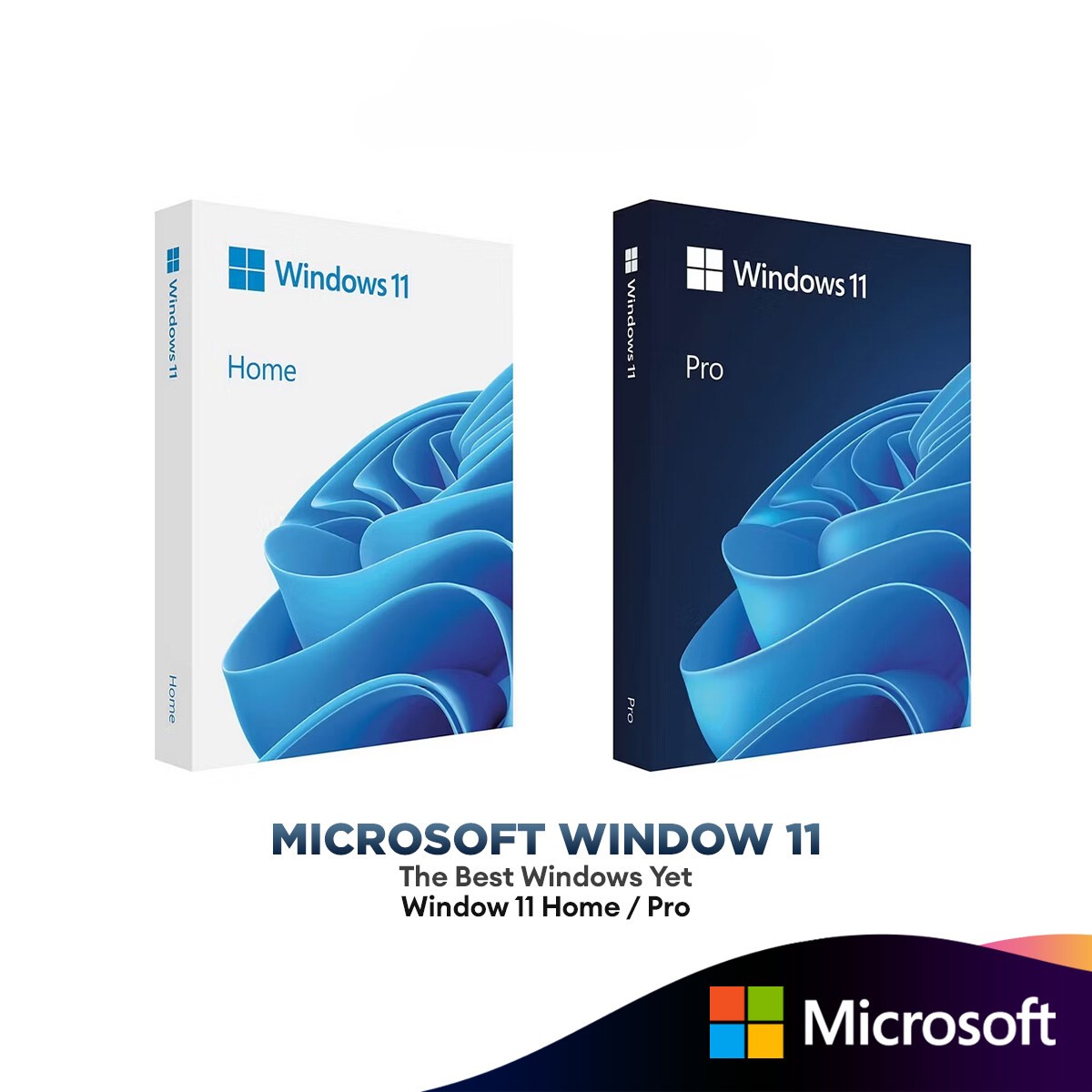
Windows 11 Professional | Lifetime Digital License
Product Description
The Next Generation of Professional Computing Step into the future of productivity with Windows 11 Professional. Engineered for modern businesses, creators, and power users, this operating system delivers a massive visual overhaul alongside serious under-the-hood performance upgrades. With a centered, streamlined Start menu and a lightning-fast interface, Windows 11 Pro provides a distraction-free environment to help you focus on what matters most.
Built for Advanced Multitasking:
Snap Layouts & Groups: Say goodbye to cluttered screens. Instantly organize multiple open applications into perfectly optimized grid layouts with just a click, allowing you to multitask like never before.
Advanced Virtual Desktops: Keep your digital life compartmentalized. Create custom, separate desktop environments for work, gaming, and personal use, and switch between them instantly.
Enterprise-Grade Security: As the “Pro” edition, this OS comes equipped with advanced security and management tools, including BitLocker device encryption and Hyper-V virtualization, keeping your sensitive data locked down.
Official Installation & Activation Guide
To ensure a clean and secure installation, we recommend downloading the official Windows 11 Media Creation Tool directly from Microsoft’s website to create a bootable USB drive or DVD.
Standard Online Activation: Once Windows 11 Pro is installed on your machine, follow these steps to activate your lifetime license:
Open the Start Menu and click on Settings.
Navigate to System and scroll down to Activation.
Click on Change Product Key.
Enter the unique activation key you received in your delivery email.
Click Next to authenticate your license. Your Windows 11 Pro is now fully operational!
Alternative Activation Methods (If Online Activation Fails)
In rare cases, network firewalls or regional restrictions may block standard online activation. If you encounter an error, you can easily activate your key using Microsoft’s automated phone system.
Method A: Via the Settings Menu
Go to Settings > System > Activation.
If online activation fails, an option labeled Activate by phone will appear. Click it.
Select your current country from the drop-down menu and click Next.
Call the toll-free number displayed on your screen. The automated system will guide you to enter an Installation ID and will provide a Confirmation ID to permanently activate your system.
Method B: Via the Run Command (Fastest)
Press and hold the Windows Key + R on your keyboard to open the Run dialog box.
Type exactly SLUI 4 into the text box and press Enter.
A blue activation window will pop up. Select your country from the list and click Next.
Dial the provided toll-free number and follow the automated instructions to generate your final Confirmation ID.
Reviews
There are no reviews yet.